Build a Small Computer Around a Routine You Already Have
A Raspberry Pi earns its space when it makes an ordinary task easier to repeat: opening a shared file, showing a family photograph, recording a workshop reading, or presenting instructions where your hands are busy. The strongest project is not necessarily the one with the most features. It is the one you can keep powered, updated, backed up, and understandable after the excitement of installation has passed. These twenty-five ideas concern Raspberry Pi computers that run an operating system, rather than Pico microcontrollers, which serve a different role. Some need only a board and storage; others require a display, compatible peripheral, or supported sensor. Treat each as a project brief, check the chosen software’s current hardware requirements, and start with one service before combining several jobs on the same machine.
A: They concern Raspberry Pi computers running an operating system; Pico boards are microcontrollers with a different role.
A: Do not assume so. Workloads, software installation methods, storage, and failure dependencies need individual assessment.
A: Only if its supported software and performance meet the job without excessive accessory or maintenance costs.
A: Only when your data also has a deliberate backup strategy and you have tested restoration.
A: Devices using its DNS service need to locate it consistently; its documentation permits a suitable DHCP reservation.
A: Keep management private and use an appropriately secured supported remote-access method if access from elsewhere is necessary.
A: Show the last successful retrieval time and distinguish stale information from a current report.
A: That copy is lost with the card; keep important recovery material on independent storage.
A: Audio playback can avoid demanding real-time video conversion and is easier to match to modest hardware.
A: After ordinary operation, shutdown, updates, data recovery, and predictable failure behavior have been tested.
Budget for the Complete Working System
Include a suitable power supply, dependable storage, any necessary cooling, a protective ventilated enclosure, and the cables your chosen board actually uses. A spare board may be sufficient for a light local service, while a demanding desktop or media workload can exceed what its processor and memory handle comfortably. Check operating-system and software support before buying accessories. Use a stable network address where another device depends on finding the Pi, and keep administration private to trusted access. Plan a normal shutdown and a tested recovery method rather than assuming a small computer is immune to storage failure. The project cost includes the time needed to maintain its data, accounts, and updates.
Four Projects That Organize Your Files
1. Small home file server
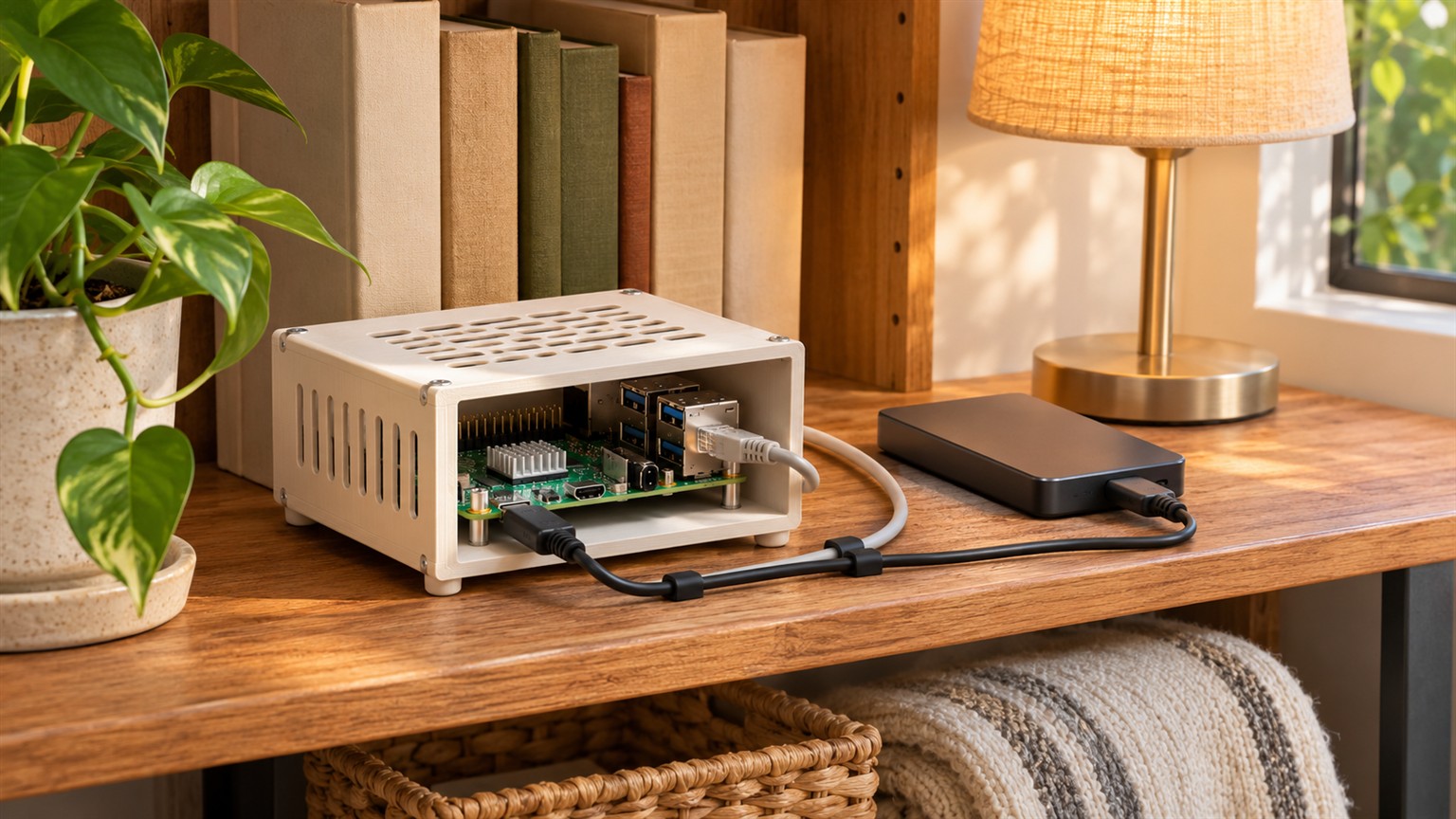
Share a modest folder of household documents or project files over the local network using suitable storage and permissions. Start with disposable test files and confirm that each intended user can read or change only what they should. Raspberry Pi’s official NAS tutorial illustrates the general arrangement. A network share is convenient storage, but it becomes a backup only as part of a deliberate additional-copy strategy.
2. Dedicated backup destination
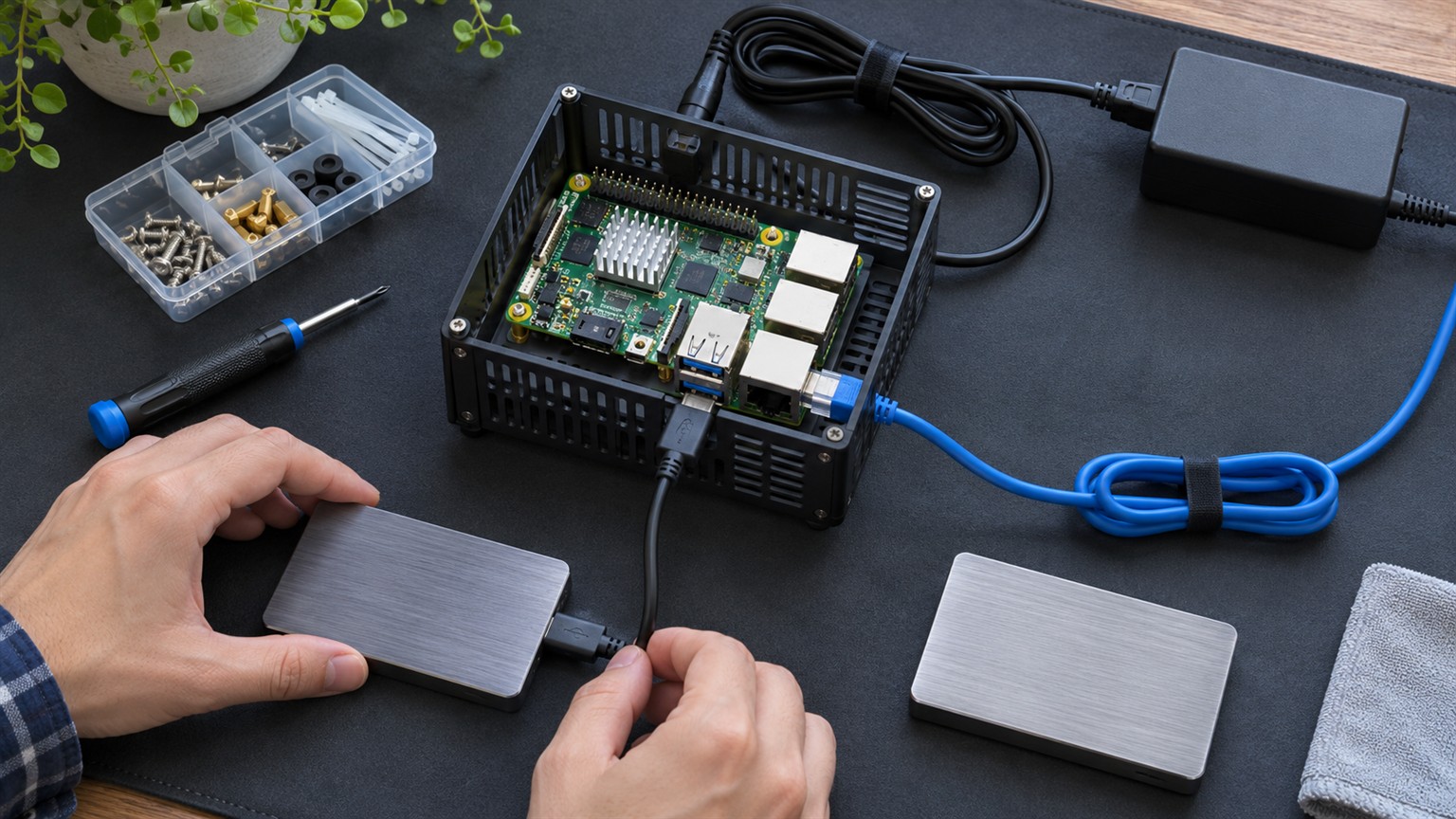
Give one computer a scheduled backup target on a Pi-connected drive. Choose backup software that supports your client’s operating system and verify that the destination is available when jobs run. Restore a sample file to another folder before trusting the arrangement. Separate this role from a freely writable shared folder, where accidental deletion may affect every accessible copy.
3. Selected-folder synchronization station
Use a supported synchronization tool such as Syncthing to keep a small chosen folder available on approved devices. Begin with unimportant files and inspect conflict behavior before adding valuable material. Decide whether changes should flow in both directions. Synchronization can propagate deletions or unwanted edits, so keep independent backups and understand which devices are authorized to exchange the folder.
4. Local project-document archive
Store manuals, diagrams, and your own build records in an organized local collection. Give each project a landing document that identifies the current version and related files. Test whether a new reader can find the assembly instructions without remembering your folder naming habits. This can be a simple file collection or local website; an elaborate database is unnecessary if straightforward navigation solves the problem.
Five Displays for Shared Household Spaces
5. Family photograph frame
Display a curated local photograph collection on a compatible screen. Decide how images are added, rotated, and removed, and schedule quiet hours rather than leaving a bright panel running unnecessarily. Protect private pictures from unintended network sharing. Test portrait and landscape images before building the frame, since cropping and orientation affect the finished experience more than a decorative border.
6. Kitchen recipe viewer
Keep your frequently used recipes on a splash-protected display positioned away from heat and food preparation. Large navigation controls are more useful than a densely packed desktop interface. Make the current recipe available locally so an internet outage does not remove dinner instructions. Store the electronics where they remain dry, ventilated, and accessible for maintenance.
7. Shared calendar screen
Show only the household events needed in a common area, using an authorized calendar integration or a deliberately maintained local schedule. Decide which details visitors should be able to see. Test account renewal and offline behavior, since an expired sign-in can leave an apparently functional screen showing old information. Display the update time so stale content does not look current.
8. Local weather summary
Present a small weather panel from a supported data source with clear timestamps and units. Respect the provider’s access terms and update limits. Keep the last successful retrieval visibly distinguishable from a fresh report. The device is a convenient household summary, not a replacement for official warnings or the detailed forecast when conditions affect travel or outdoor work.
9. Household task board
Show a short list of recurring chores with an easy way for authorized household members to update completion. Begin with a local page or simple application before adding accounts and integrations. Decide when tasks recur and how mistakes are corrected. A clear three-item board can be more useful than a complicated dashboard whose maintenance becomes another unfinished household chore.
Three Network Services Worth Learning Carefully
10. Pi-hole DNS filtering
Run Pi-hole on supported hardware and an operating system listed in its current documentation. Its prerequisites include a stable address, such as a DHCP reservation, because clients must find their DNS service consistently. Test one device first and record how to restore its previous DNS settings. Filtering has limits and can affect legitimate services; plan for updates and the Pi being unavailable.
11. Home Assistant controller
Use a supported Raspberry Pi configuration with the installation method recommended by Home Assistant. Start with one noncritical integration and test ordinary manual control when the server is offline. Some devices need an additional compatible radio adapter. Make backups of the configuration and understand restoration before expanding to many household routines that depend on one small computer.
12. Local service-availability monitor
Check whether selected services you own are responding and show a simple local status page. Distinguish a failed check from a proven hardware failure; a network interruption can make a healthy device appear absent. Keep intervals modest and monitor only systems you administer or are authorized to test. Include the last check time rather than leaving a permanent green indicator after the monitoring process stops.
Six Helpful Workshop Companions
13. Supported 3D-printer host
Use a printer-compatible host such as OctoPrint on hardware its project currently supports. Confirm the printer connection, software requirements, and normal cancellation behavior before sending a real job. A camera can aid observation but does not make unattended printing inherently safe. Keep normal printer safety practices and a reliable way to stop the machine independent of a remote interface.
14. Workbench reference terminal
Install a compact keyboard and display where you frequently consult datasheets or assembly drawings. Keep the most important references available offline and enlarge them for comfortable reading at the actual viewing distance. Protect the computer from conductive debris and airborne dust appropriate to the workspace. This is often a more practical use of a spare Pi than a complicated automation project.
15. Parts-inventory kiosk
Maintain a simple searchable list of the components or materials stored in your workshop. Start with names, quantities, locations, and a way to record withdrawals. Test the update process with a few real purchases before importing a large catalog. The system’s usefulness depends on easy corrections and consistent recording, not on pretending every resistor has been counted perfectly.
16. Build-progress camera
Use a compatible camera and supported capture software to take periodic photographs of your own project area. Mount it securely outside tool travel and avoid recording people without an appropriate agreement. Test focus and lighting at the intended interval. Limit retention so storage does not fill, and check that a missed capture does not silently end the record for an entire week.
17. Local code repository
Host a small private Git repository over properly configured authenticated access for your own scripts and project files. Test cloning and restoring a previous revision from another computer. Keep repository backups elsewhere, because version history on one drive still depends on that drive surviving. Restrict permissions to the intended users and avoid exposing administration directly to the public internet.
18. Reusable test-results station
Record measurements from a supported instrument or a manually entered form during repeated bench trials. Give every record a unit, timestamp, and meaningful test identifier. Start by comparing a short session with your handwritten observations. A consistent table of results can be more valuable than an elaborate live chart that hides missing samples or confuses two different experimental setups.
Four Ways to Observe a Small Environment
19. Workshop temperature history
Log a suitable sensor at a modest interval to understand temperature changes over ordinary workdays. Position it away from processor heat, direct sunlight, and other influences unrelated to the air you want to observe. Compare its response with a separate reference instrument. Record gaps explicitly so a disconnected sensor does not produce a falsely smooth history.
20. Filament-storage humidity record
Place a compatible humidity sensor in a storage space using an appropriate enclosure and wiring arrangement. Observe trends after opening the container or changing its drying materials. Do not equate one sensor reading with proof that every spool is dry enough for printing. Keep the record alongside material handling instructions and the actual behavior of your filament.
21. Plant-growth time-lapse
Photograph a plant from a fixed position at intervals using supported camera tools. Keep the electronics clear of watering and secure the mount so the framing stays consistent. Choose a storage limit and review the images after a short initial run. The useful outcome is an observable record of growth and light changes, rather than a promise of automated plant diagnosis.
22. Door-opening activity log
Record a simple contact sensor on a cupboard or equipment case you own, using suitable interfacing and agreed household expectations. Test repeated openings and a sensor disconnected from its wiring. Store only the history you actually need and provide a way to erase it. This is a routine activity record, not a certified security system or an invitation to monitor others secretly.
Three Quiet Desk Devices
23. Local music player
Play your own supported audio collection through a suitable audio interface and speakers. Check the software’s compatibility with your board and chosen output hardware before making a case. Start with local files and simple physical controls. A music player avoids the demanding video-transcoding assumptions that can make a small-board media-server project disappointingly slow.
24. Physical-button shortcut station
Connect a few properly interfaced buttons to launch approved local tasks, such as opening your project record or starting a session timer. Give each action clear feedback and prevent one held button from launching it repeatedly. Keep destructive commands out of the first version. Test startup behavior so a pressed control during boot cannot trigger an unexpected chain of actions.
25. Focus-session clock
Build a desk timer with a compatible display and a deliberate start, pause, and reset interaction. Keep the current state obvious across the room and avoid a loud alert if a quiet light is sufficient. Test how the clock behaves after power loss. Its value comes from helping you manage a routine without requiring your main computer or phone to remain open.
Keep the Service Useful After Installation Day
Give the finished device a simple operating record: what it does, where its data lives, which account maintains it, and how to stop and restore it. Apply supported updates, keep an independent copy of important configuration, and try a recovery before the project becomes essential. Start one service automatically only after its manual behavior is understood. Combining services saves hardware, but it also couples their outages and can complicate upgrades. A working file server should not unexpectedly vanish because an unrelated display experiment damaged the same operating-system installation.
Use the current Raspberry Pi documentation and each software project’s official installation instructions to select the board, operating system, and peripherals. Pi-hole, Home Assistant, and Syncthing have distinct setup and maintenance requirements; a generic old tutorial cannot establish compatibility for every new release. Choose the everyday job you will actually maintain, then measure success by dependable use over time. A plain enclosure and one reliable service make a better household tool than an impressive collection of features nobody knows how to repair.